
PHMACAO APP
phmacao app Support
Separate connection, account and installation issues, then preserve the details needed for help.

Start with the stage at which the problem appeared. A page that will not open, a rejected password and an installation warning need different next steps. The phmacao.com support information below helps you describe the issue without sharing sensitive account information.
A page does not open
Check whether another ordinary site loads. If it does, note the address that failed and try a fresh tab once. If nothing loads, examine the device’s connection. Change one factor at a time so you can tell what helped. Repeatedly clearing data, switching networks and resetting an account together makes diagnosis harder.
An account cannot sign in
Read the message carefully and use the destination’s own recovery options. Do not create duplicate accounts to test access. This website cannot change an external password, approve documents or inspect balances. Never give a one-time code to a person offering to complete sign-in for you.
A file or installation is blocked
Record the exact warning and identify the publisher before continuing. Do not disable protection just to make an unfamiliar file run. The Download page distinguishes a browser destination from a verified installer, and no installation file is hosted here.
Prepare a concise report
State the time, device, browser, destination and last completed step. Include only the relevant non-sensitive message. Redact personal identifiers and transaction details from screenshots. Explain what you already tried once and whether the result changed. Preserve the report so you can compare later replies.
Check the contact destination
The configured social buttons currently use reference channels from the site specification. They are not verified phmacao support accounts and should not receive account documents or credentials. phmacao.com support information does not promise staffed chat, a response time or account resolution. Use the service’s independently verified account channel for private matters.
Connection setup for your phone
Choose your platform and review each step before continuing.
iOS
-
STEP 1
Open App Store
Open App Store on your device.

-
STEP 2
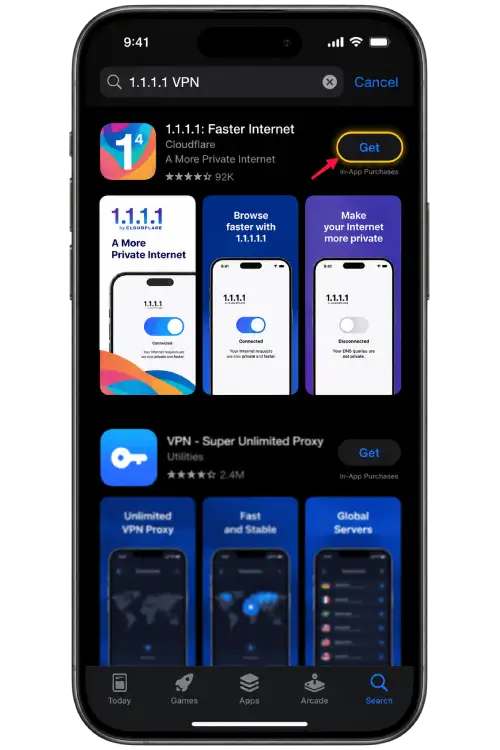
Find the Cloudflare app
Find 1.1.1.1: Faster Internet by Cloudflare. Review the publisher before installation.
-
STEP 3
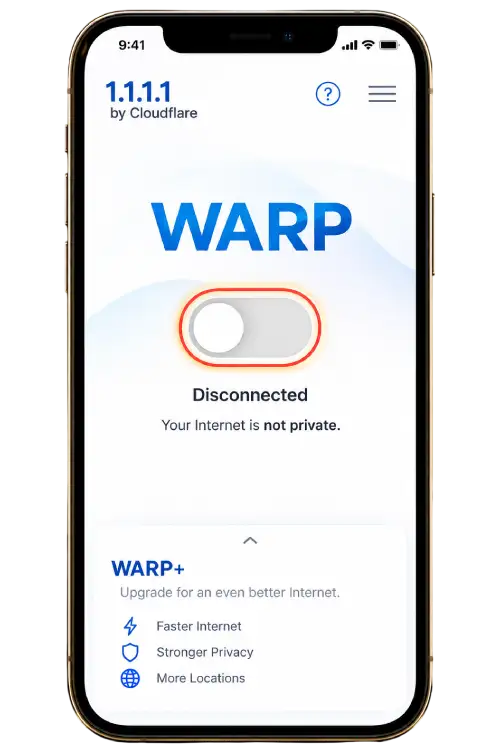
Complete setup
Open the app, follow setup and review the requested VPN configuration permission.
-
STEP 4
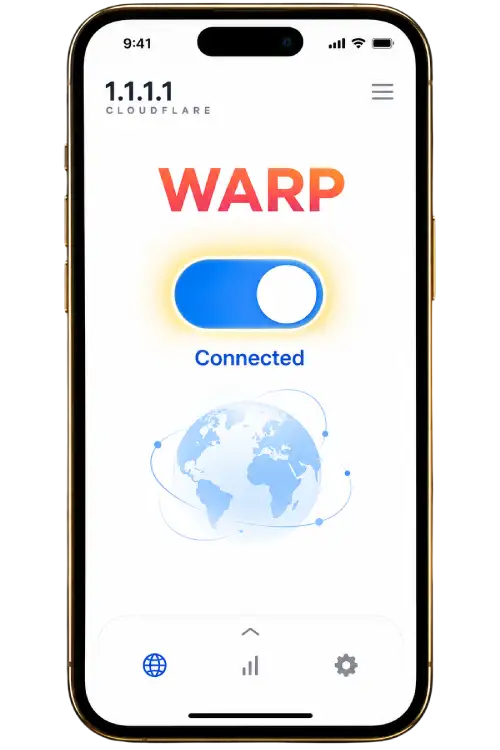
Turn on WARP
Wait for the app to report Connected, then return to your browser. A connection does not guarantee access to every website.
Android
-
STEP 1
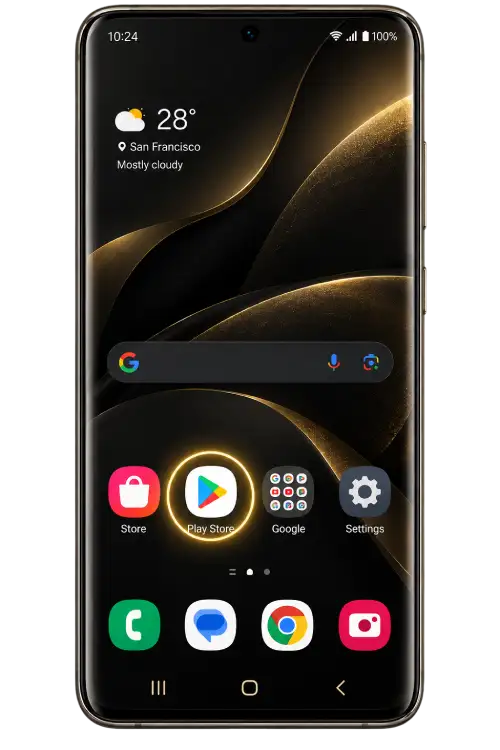
Open Google Play
Open Google Play on your device.
-
STEP 2
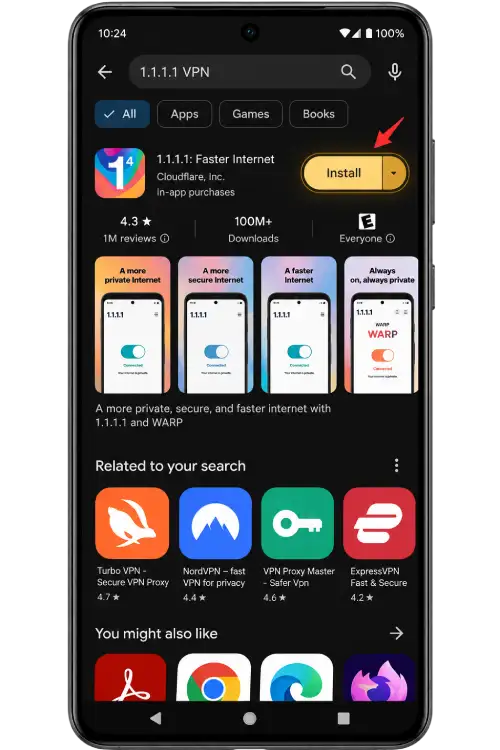
Find the Cloudflare app
Find 1.1.1.1: Faster Internet by Cloudflare. Review the publisher before installation.
-
STEP 3
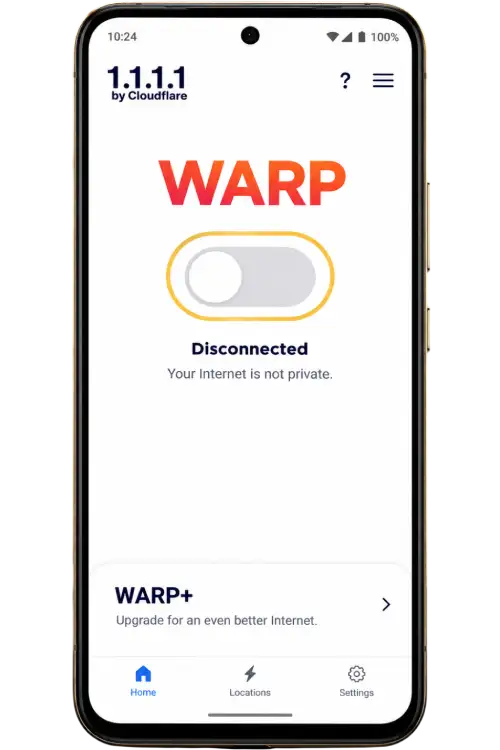
Complete setup
Open the app, follow setup and review the requested VPN configuration permission.
-
STEP 4
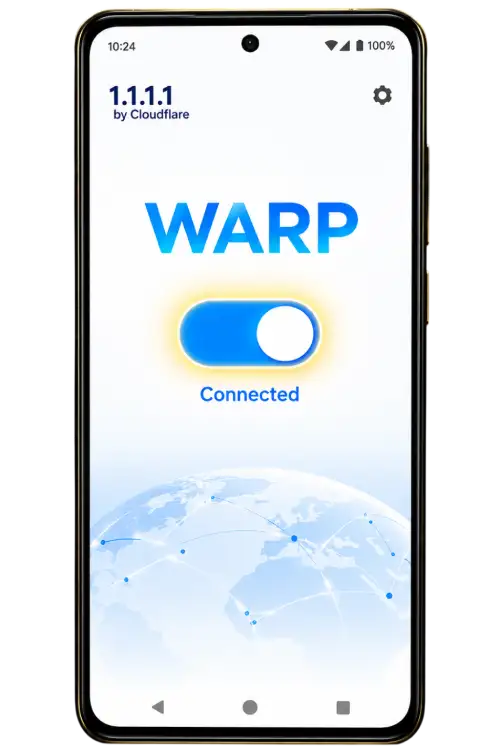
Turn on WARP
Wait for the app to report Connected, then return to your browser. A connection does not guarantee access to every website.
These are reused reference screens. App screens may vary by version. Optional paid features are separate from the basic setup. Review the current provider instructions: iOS and Android.